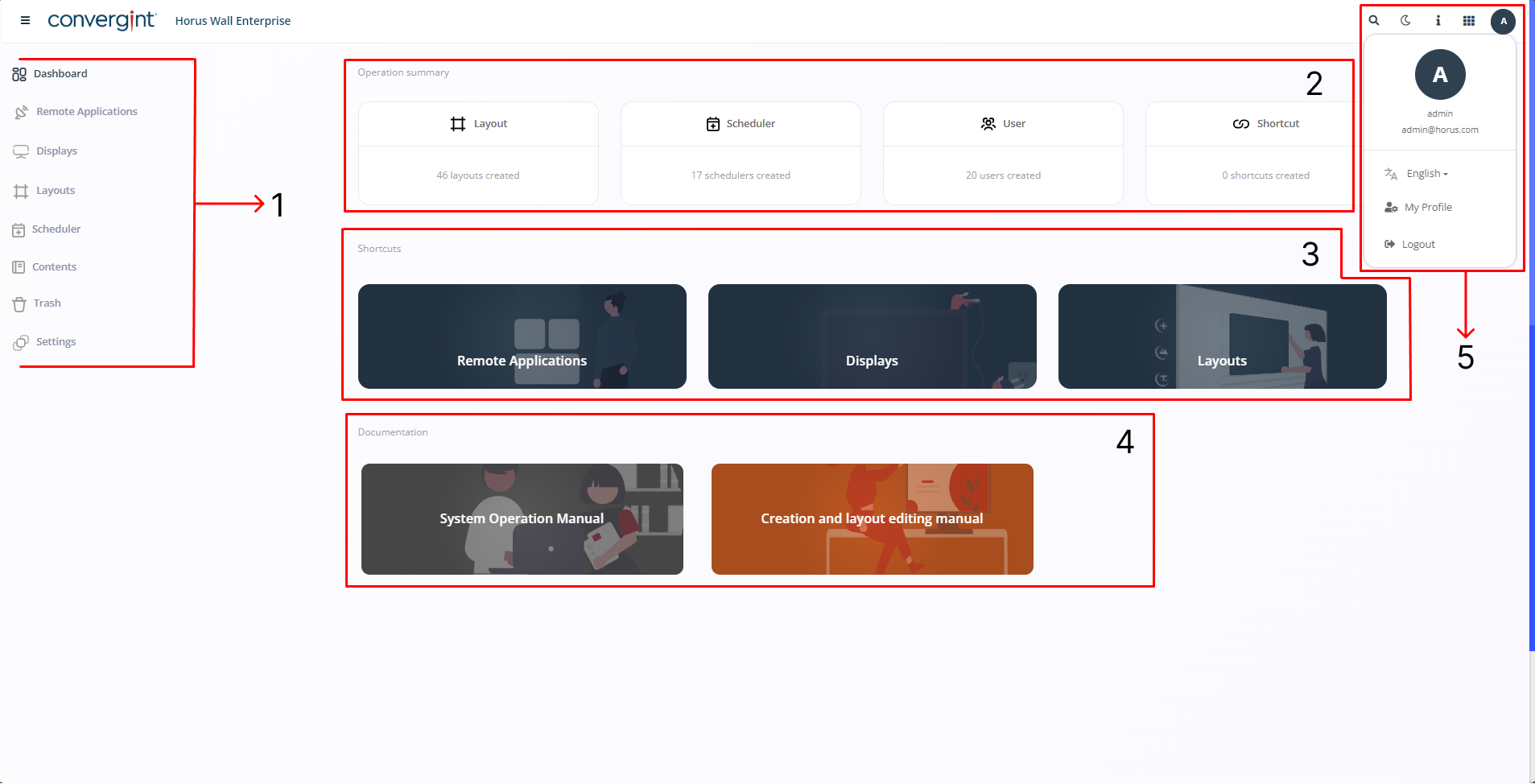
Through the Sidebar, it is possible to access the various features that the platform offers.
The Operation Summary section allows viewing the total records from the various tabs provided by the system, such as Layout, Schedulers, Users, and Shortcuts. This way, the user doesn't need to navigate through the platform to manually check these records, as they can directly consult the data presented on the Home Page.
Through the Shortcuts section, it is possible to access the Remote Applications, Displays, and Layouts tabs. This feature enhances user navigation by eliminating the need to browse through the platform to reach the aforementioned tabs.
In the Documentation section, the platform allows access to the documentation system, where the platform's manual is located, enabling the user to gain a better understanding of the platform and the features it offers.
5.1. The Search Bar is used to search for Remote Applications, Displays, Layouts, and other records or entries previously made in the system.
5.2. In Style Change, it is possible to change the interface theme within the system, switching between light or dark mode, based on your preference.
5.3. In the Page Tour, you can take a brief walkthrough of the tab you are accessing. This tour highlights the available features, explaining what each one does and how to use them.
5.4. Through Additional Information, you can check the platform's changelog and open source details. This allows you to review all significant changes made in each version and view the platform's source code.
5.5. By accessing My Profile, you can change the platform's language, view detailed user information such as the email, and manage platform security settings. Additionally, you can log out of the platform by clicking the "Log Out" button.